
Power Automate for Salesforce and Microsoft Teams: the limits to check before you build
1. The short answer
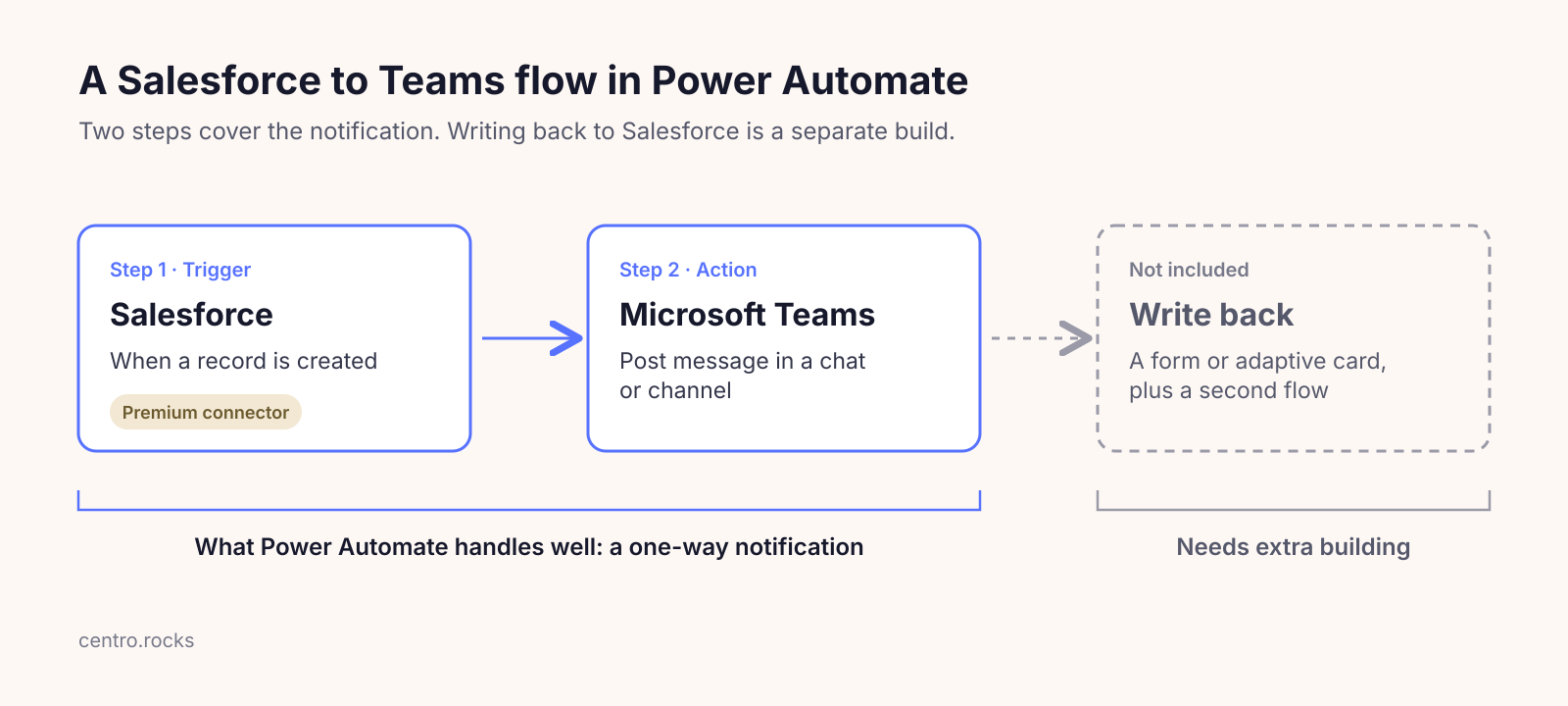
Power Automate handles one-way notifications from Salesforce to Microsoft Teams well. The limits show up in licensing, daily request allowances, write-back and upkeep.
2. Licensing: the Salesforce connector is Premium
Microsoft lists the Salesforce connector as Premium in Power Automate (Microsoft Learn: Salesforce connector). A flow that uses it needs a premium license: Power Automate Premium per user, or the Process license (formerly the per-flow plan) assigned to the flow.
Two more checks from the same page. The connector is not available in the US Government (GCC and GCC High), Department of Defense or China cloud regions. On the Salesforce side, the org needs API access, and Salesforce trial accounts cannot be used.

3. Daily request limits
Every trigger and action that runs counts as one Power Platform request, including failed actions, retries and pagination (Microsoft Learn: Requests limits and allocations). Microsoft’s official limits per 24 hours are:
- Power Automate Premium: 40,000 requests per user.
- Process license (formerly the per-flow plan): 250,000 requests per license, reserved for the flow it is assigned to.
- Microsoft 365 licenses with Power Platform access: 6,000 requests per user.
Microsoft is in a transition period with higher limits. Until it ends for your organization, Premium and Office 365 limits apply per cloud flow instead of per user: 200,000 per flow for Premium, 10,000 per flow for Office 365, and 500,000 per Process license. The per-user limits start phasing in from April 2027. After that, all flows that run under one user share that user’s limit across environments, so design for the per-user numbers now (Microsoft Learn).
4. What happens at the limit
When a flow goes over a limit, its activity slows. It resumes when usage in the sliding window drops back below the limit. A flow that stays consistently throttled for 14 days is turned off, and so is a flow whose trigger or actions fail continuously for 14 days (Microsoft Learn: Limits of automated, scheduled, and instant flows). Microsoft sends these notices by email, so someone needs to watch the flow owner’s mailbox.
5. Design limits
- 500 actions per flow. Microsoft suggests child flows if you need more (Microsoft Learn).
- A run can last 30 days. After that, pending steps such as approvals time out.
- A flow that is not triggered for 90 days might be turned off. Flows owned by users with premium licenses, and flows with a Process or per-flow license, are exempt. Owners are notified 30 days before suspension.
- The Salesforce connector allows 900 API calls per connection every 60 seconds (Microsoft Learn: Salesforce connector).
6. What needs extra building
- Each notification is its own flow. Ten use cases means ten flows to build, license, and maintain.
- Write-back from Teams needs a form or adaptive card plus a second flow to handle the response.
- There is no native concept of a channel tied to a record, so channel creation and membership are manual or another flow.
- Salesforce field-level security is enforced through the integration user, so every flow runs with that user’s access, not the reader’s.
7. When Power Automate is the right choice
If you need one notification, such as a channel post when an opportunity closes, and a Premium license is already in place, Power Automate is the right choice. Check the request limits above against your expected volume before you build.
8. Where Centro fits
Centro adds actions to Salesforce Flow: create a Teams channel from a record, add members, post a message, prompt a user, and write the answer back. It is a flat per-user subscription with no message or request metering. For Power Automate, MuleSoft, iPaaS and Centro side by side, see the build vs buy comparison. For setup steps for each method, see how to connect Microsoft Teams and Salesforce.
Book a demo and bring the flows you run today.
FAQ
Is the Salesforce connector in Power Automate premium?
Yes. Microsoft lists the Salesforce connector as Premium in Power Automate, Power Apps and Copilot Studio, so a flow that uses it needs a premium license.
How many requests can a Power Automate flow make per day?
It depends on the license. Microsoft's official limits are 40,000 requests per 24 hours per Power Automate Premium user, 250,000 per Process license, and 6,000 per user for Microsoft 365 licenses. Microsoft is in a transition period with higher per-flow limits, and the per-user limits start phasing in from April 2027.
Why did my Salesforce to Teams flow turn off?
Microsoft turns off a cloud flow that is consistently throttled for 14 days, or whose trigger or actions fail continuously for 14 days. A flow that is not triggered for 90 days might also be turned off, unless its owner has a premium license or the flow has a Process or per-flow license.

